
How to reset multi-factor authentication on your Paystack Dashboard
If you lose access to your authenticator app, you can sign in to your Paystack Dashboard using one of your backup codes. If you don’t have a backup code, you can recover your account from the sign-in page.
Account recovery takes about 3 hours, or 6 hours if you are an Admin.
💡 The recovery or reset option is only available on the new Paystack dashboard
Before you start
To recover your account, you must have access to:
The email address on your Paystack account: Paystack will send a 6-digit verification code to this address.
The phone number on your Paystack account: Paystack will send a 6-digit verification code through SMS or WhatsApp.
You’ll also need a phone with an authenticator app, such as Authy or Google Authenticator, to set up two-factor authentication (2FA) again.
You can regain access in one of two ways.
Option 1: Sign in with a backup code
This is the fastest way to regain access. You received 10 backup codes when you first enabled 2FA.
Go to the Paystack Dashboard sign-in page and enter your email address and password.
On the Sign in to your account screen, click Sign in another way.
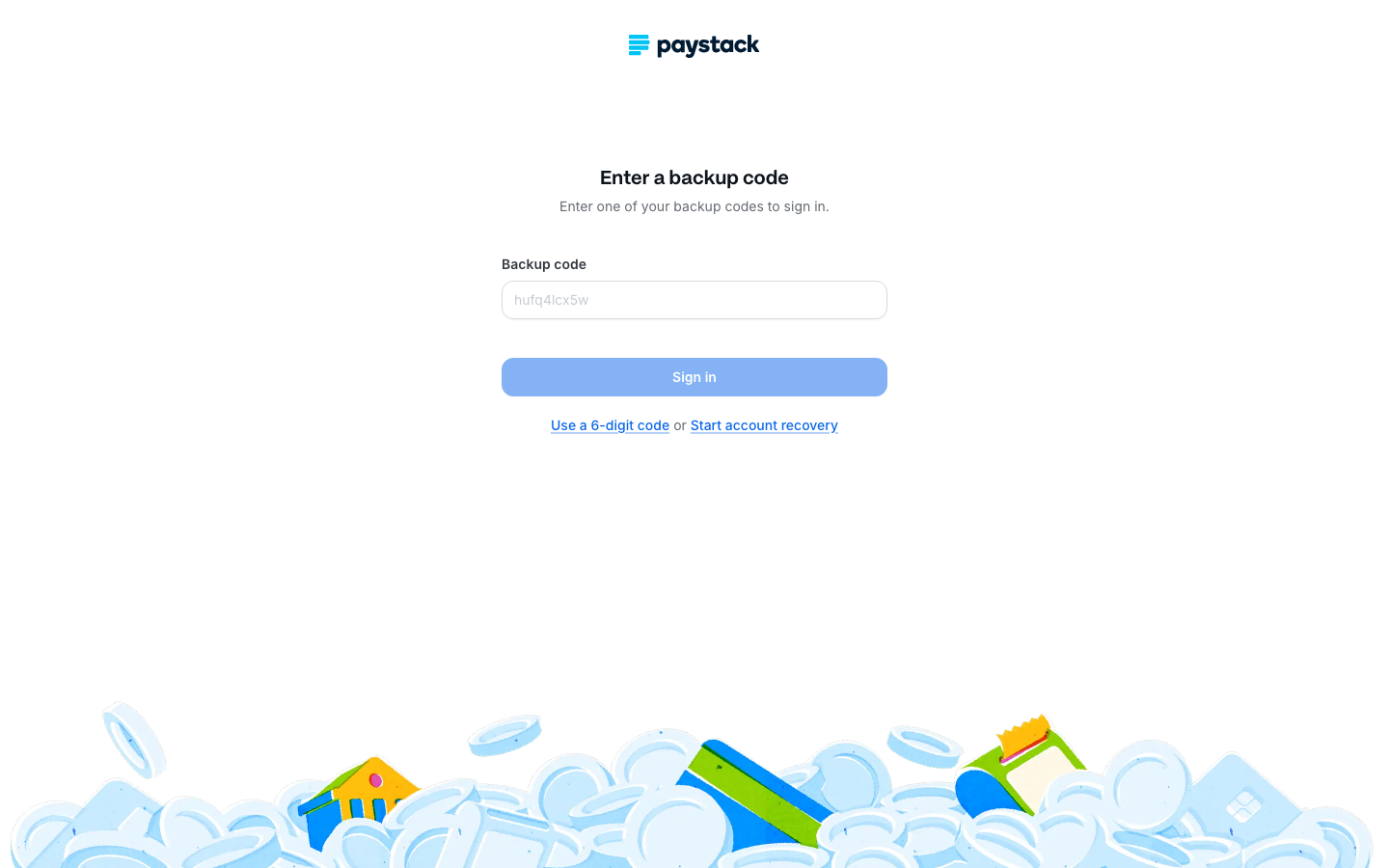
Enter one of your backup codes in the Backup code field.
Click Sign in.
💡 If you can’t find your backup codes, click Start account recovery on the same screen and follow Option 2 below.
Option 2: Start account recovery
Use this option if you have lost access to both your authenticator app and your backup codes. You’ll verify your email address first, followed by your phone number.
On the sign-in page, click Sign in another way, then click Start account recovery.
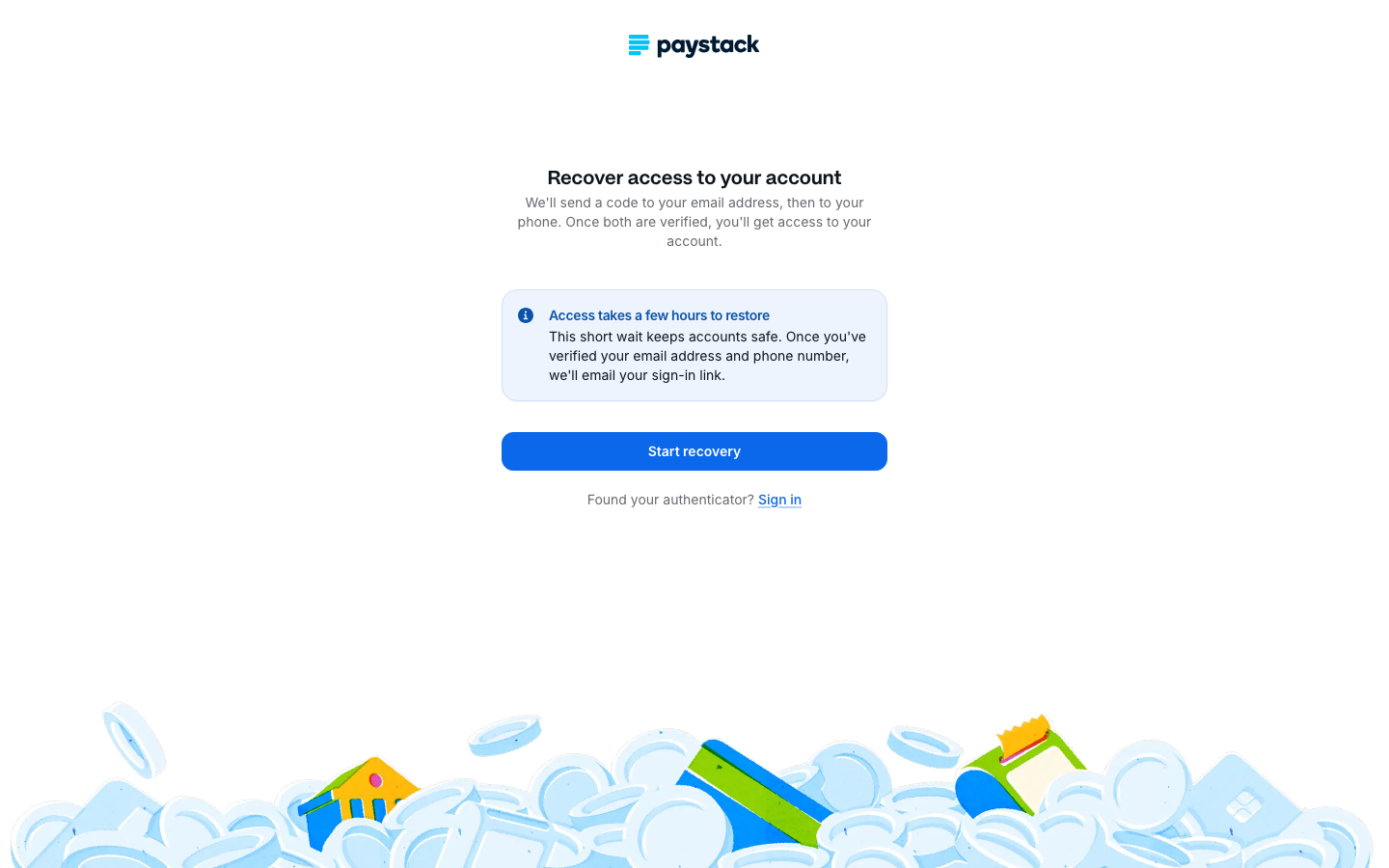
Read the notice on the Recover access to your account screen, then click Start recovery.
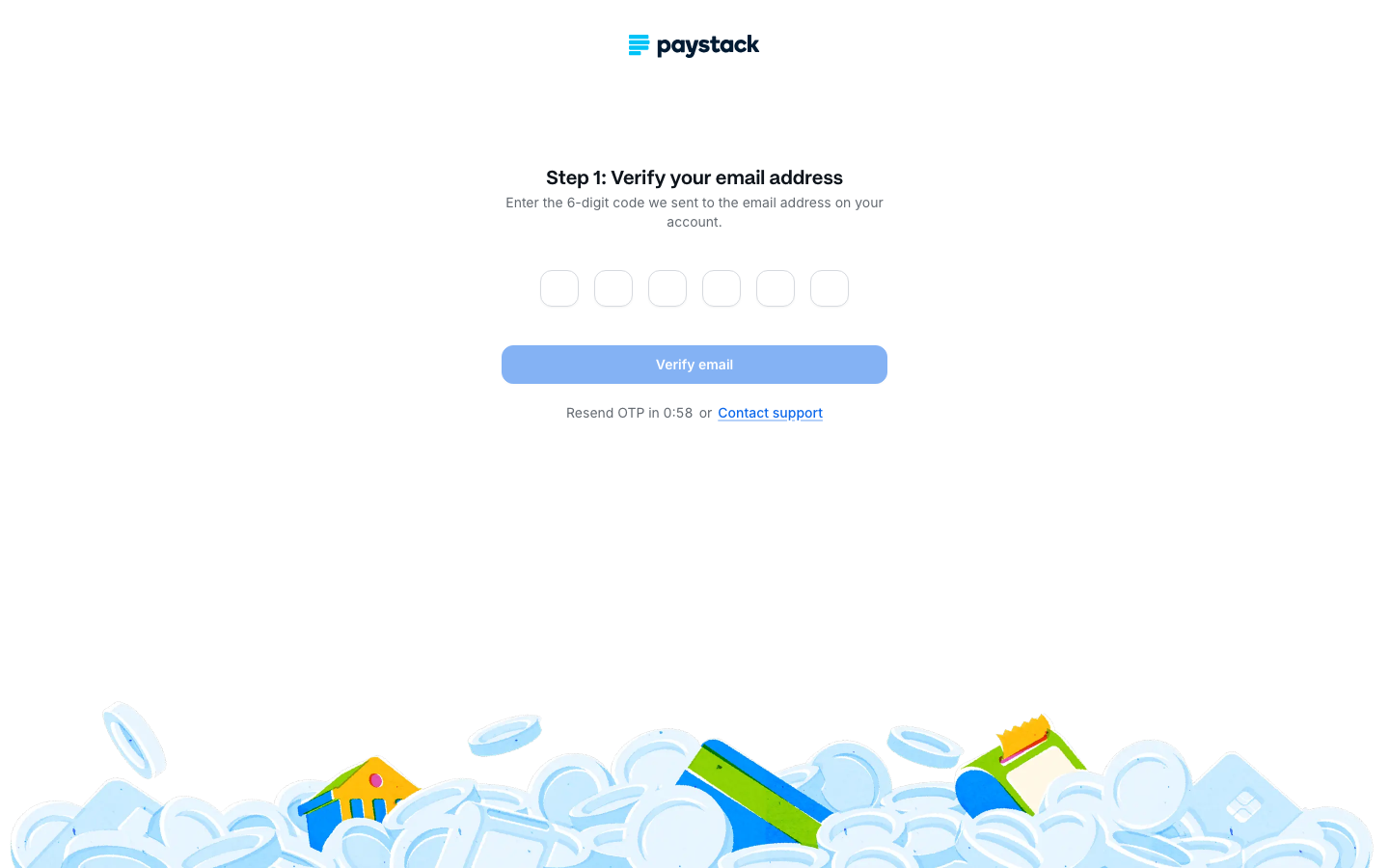
Verify your email address. Check the inbox of the email address on your account for a 6-digit code. Enter it and click Verify email.
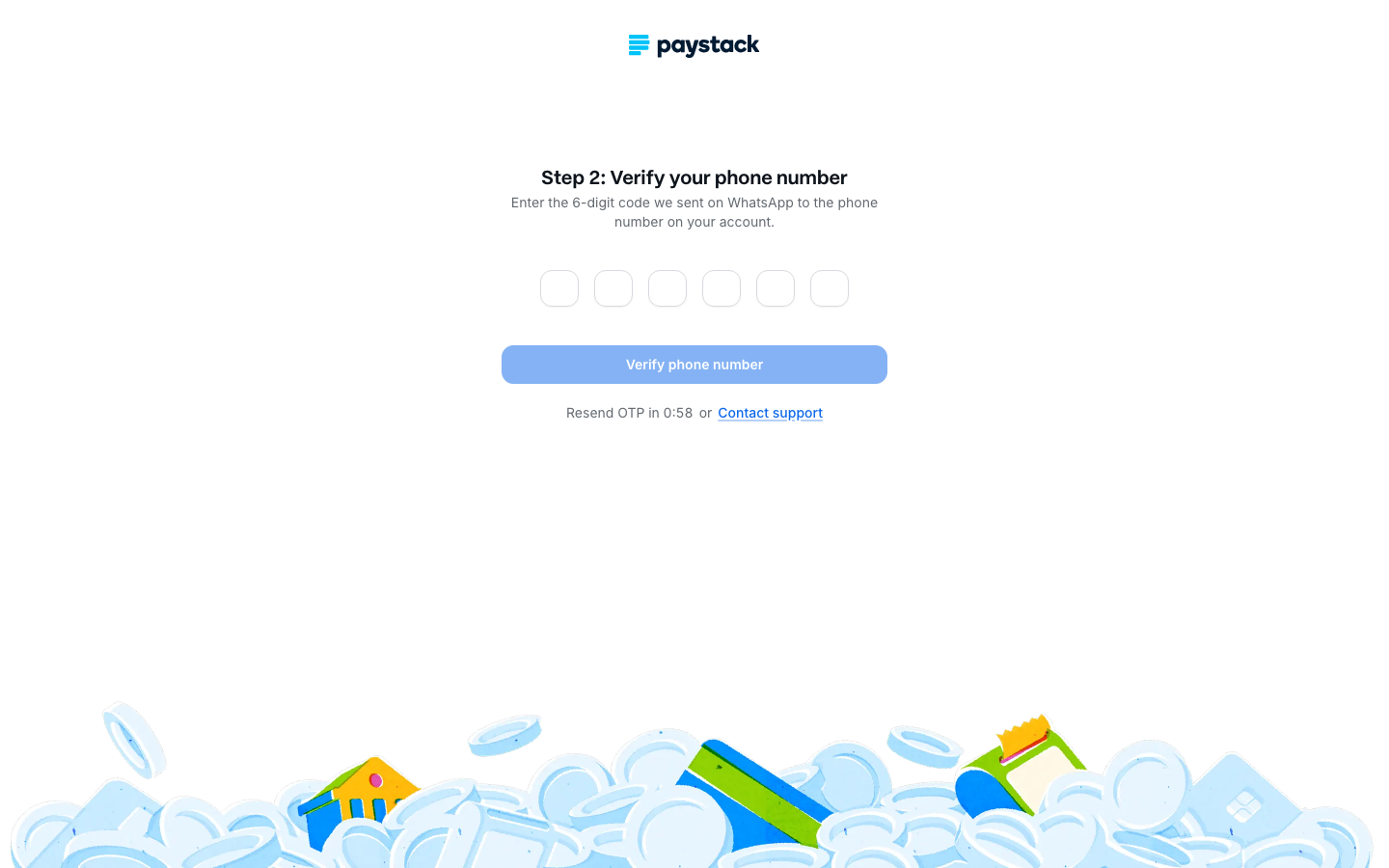
Verify your phone number. Check your WhatsApp or SMS on the phone number linked to your Paystack account for a 6-digit code. Enter it and click Verify phone number.
When you see You’re verified!, you’re done for now. You can close the page.
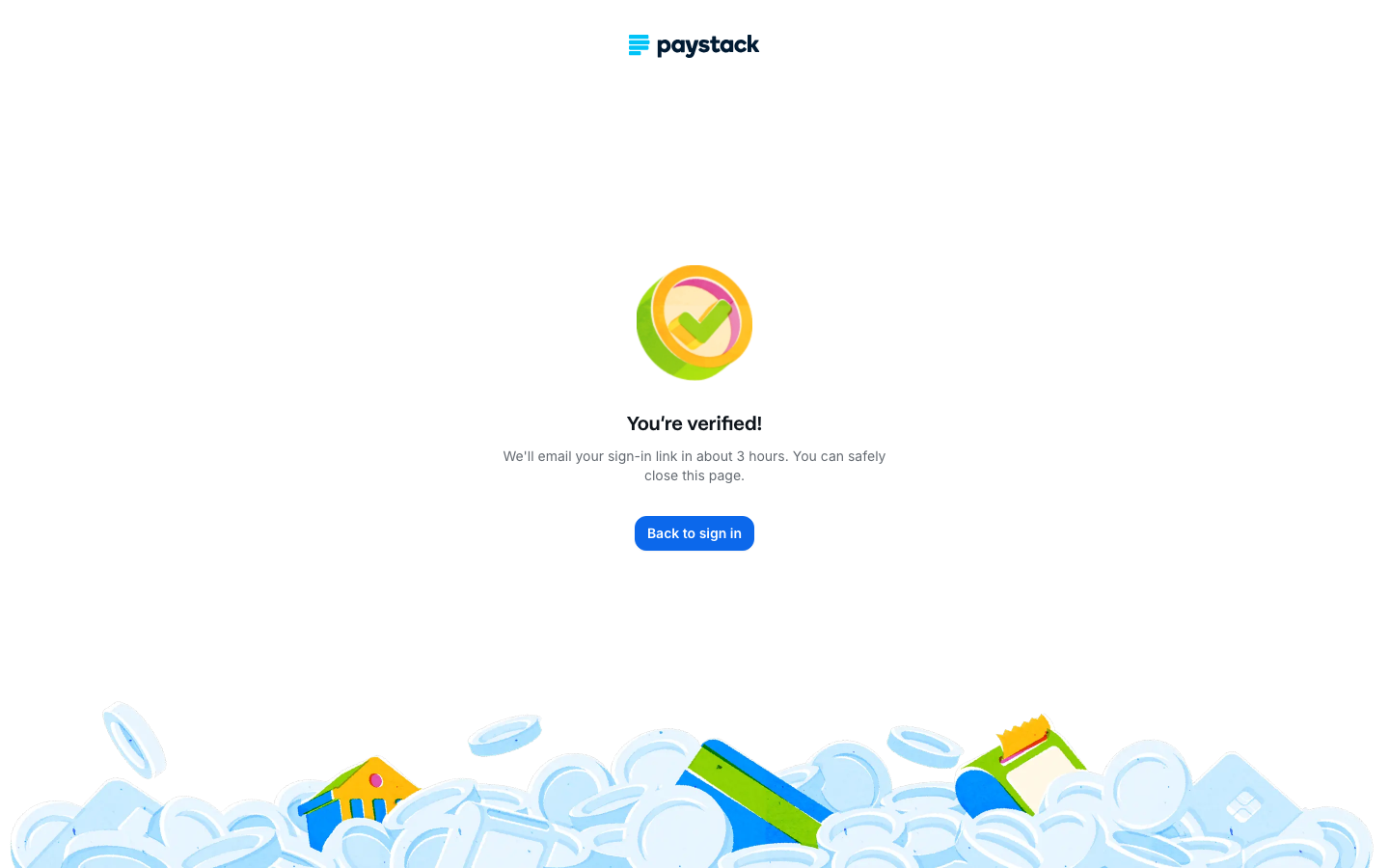
Paystack will email you a sign-in link after approximately 3 hours. If you are an Admin, the waiting period is 6 hours.
If you regain access to your authenticator app while waiting, click Sign in on the recovery screen and sign in normally.
What happens during the waiting period
The waiting period helps protect your account by giving your team time to stop an unauthorised recovery request.
During this period, an Admin on your Paystack account will receive an email showing your name, email address, and when the waiting period ends.
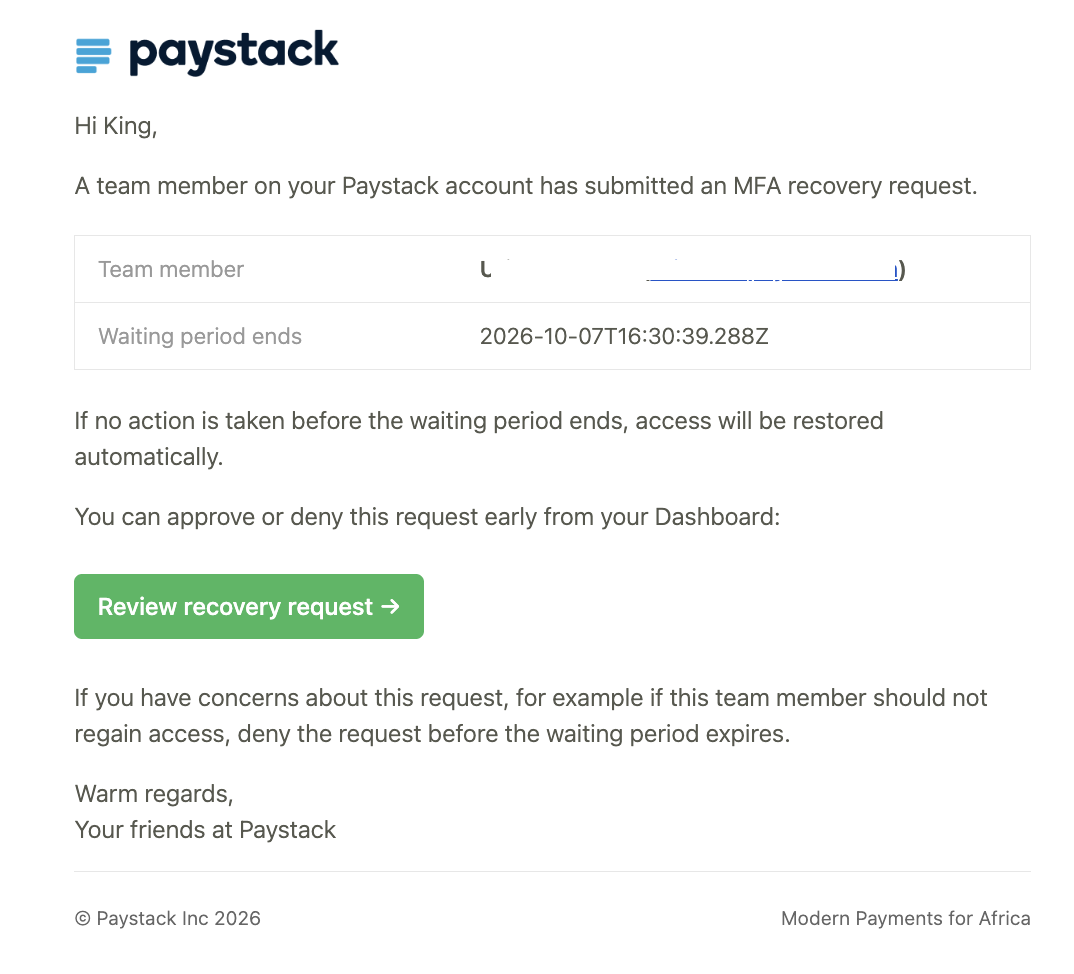
The Admin can:
Take no action: Your access will be restored automatically when the waiting period ends.
Approve the request early: The Admin can click Review recovery request in the email and approve it from the Dashboard.
Deny the request: The Admin can reject it from the Dashboard before the waiting period ends if the request appears unauthorised.
⚠️ If you receive an unexpected recovery request for a team member, confirm the request with them before approving it.
Set up 2FA again
When you use the link from your email to sign in, you’ll be prompted to enable 2FA again.
Install an authenticator app, such as Authy or Google Authenticator, if you don’t already have one.
Use the app to scan the QR code displayed on the screen. If you can’t scan it, enter the displayed text code into the app manually.
Enter the 6-digit code generated by the app, then click Enable.
Click Download backup codes to save your 10 new backup codes.
🔐 Store your backup codes securely. You can use them to sign in if you lose access to your authenticator app again.
Troubleshooting
I didn’t receive the email code
Wait for the timer beneath the code fields to finish, then request a new code.
I didn’t receive the mobile OTP
Wait for the timer to finish. Then click Resend on WhatsApp or Send by SMS to receive a new code.
I can’t access my email address or phone number
Click Contact Support on either verification screen for assistance.
I haven’t received my sign-in link
The link should arrive after the applicable waiting period. You won’t receive it if an Admin denied the request. Speak to your team or contact Paystack Support.