
How to add a new business to your existing Paystack account
You can manage multiple Paystack businesses with one user account and one set of login details. Each business has its own Dashboard profile, Business ID, transaction records, and settings, making it easier to keep business activity separate.
You may want to add another business if you:
Run more than one business or brand
Operate in more than one country
Manage branches, stores, websites, or apps separately
Need separate transaction records, settings, or payout details
Are replacing an existing business with a different legal entity
💡 Adding a business does not merge it with your existing business. Each business remains separate, but you can switch between them without signing out.
Who can add a business?
Adding a business happens from your Paystack user account, not from the settings of the business you are currently viewing. A signed-in user who can access the business switcher can select Add a Business and create a separate business.
Your role on an existing business does not automatically carry over to the new one. The new business has its own team and permissions, and you can invite other users after creating it.
Before you add another business
Choose the option that best fits your needs:
Create a new business
Choose this option if the new business:
Is a different legal entity
Uses different registration documents
Operates in a different country
Requires separate compliance information
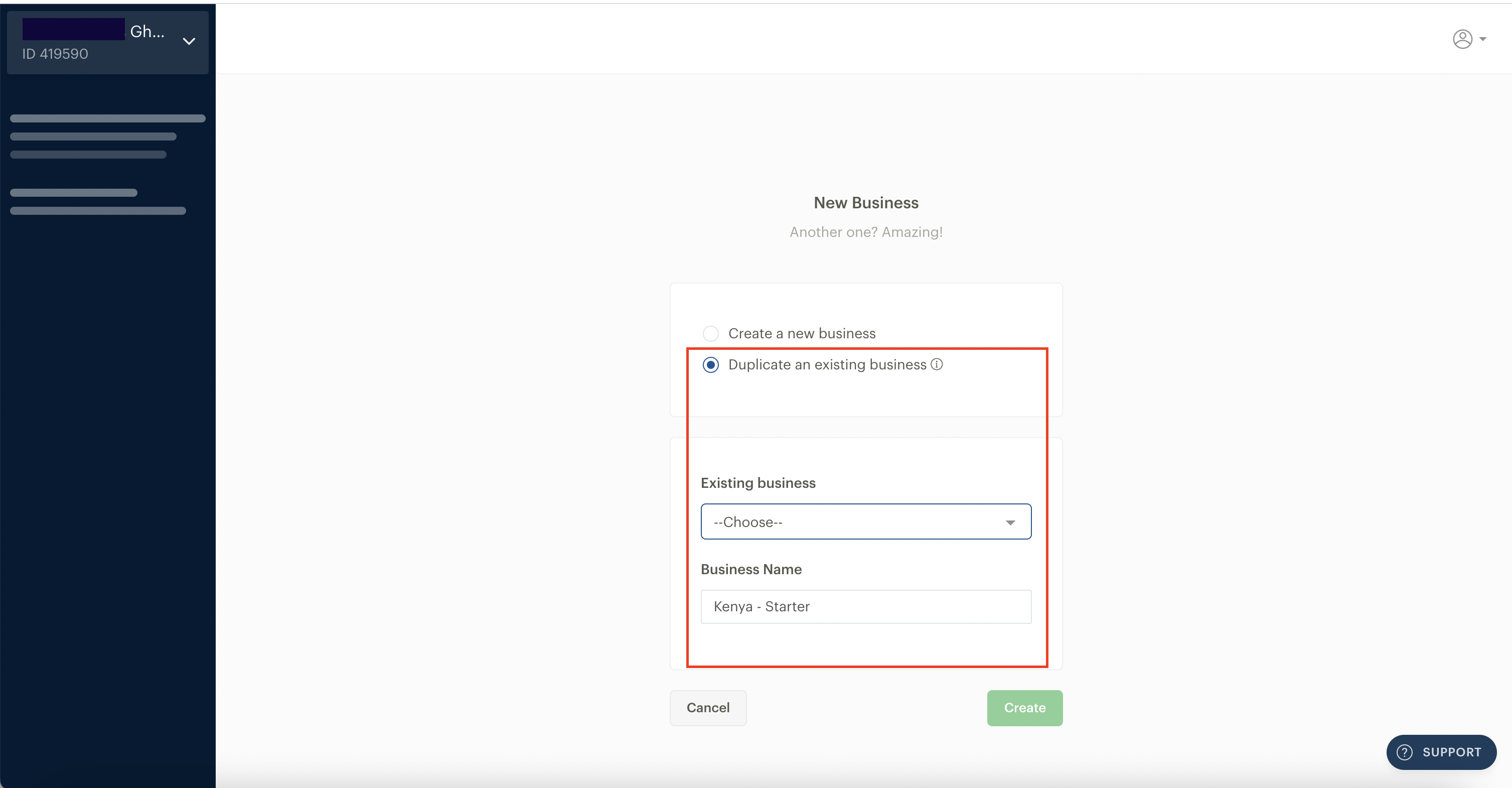
Duplicate an existing business
Choose this option if the new business can use the same compliance information as a business already on your Dashboard—for example, another branch of the same registered company.
Duplicating a business copies eligible compliance information and documents from the selected business to make setup faster. It is intended for another integration belonging to the same legal business—for example, another branch, product, or website using the same registration information.
Information to review
Review all copied information before submitting the new business. You may need to update or provide details specific to it, including:
Trading name
Business description
Website
Payout or settlement account
Owner information
Licences
Merchant Service Agreement, where applicable
Information that remains separate
The following information is not duplicated:
Team members and roles
API keys and webhook settings
Special pricing or commercial arrangements
ℹ️ You can only select an eligible source business from the same country. If the new business operates in another country, is a different legal entity, or requires different compliance information, choose Create a new business instead and complete the requirements for that country and business type.
How to add a new business
Log in to your Paystack Dashboard.
Click the arrow beside your current business name and Business ID at the top-left of the Dashboard.
Select Add a Business.
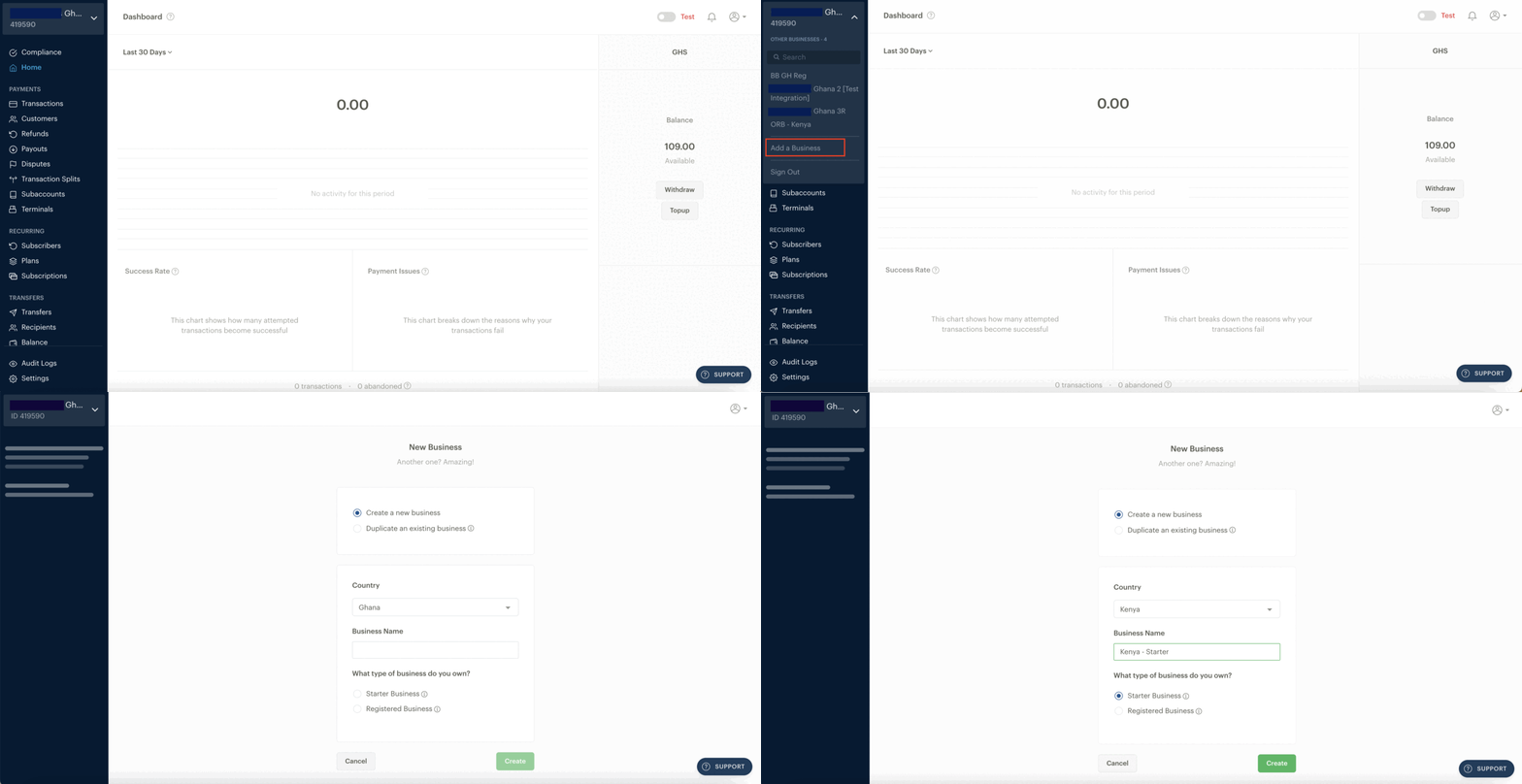
Choose one of the available options:
Create a new business, or
Duplicate an existing business.
If you are duplicating a business, select the eligible existing business whose compliance information you want to copy.
Select the country and business type, where requested.
Enter the new business’s trading name and other required information.
Review the information and select Create Business.
Complete the Compliance section for the new business. Review any copied information, upload the correct documents, and add or confirm its payout account details where required.
Submit the business for review and activation when prompted.
After creating the business, you’ll see its unique Business ID beneath its name at the top-left of the Dashboard.
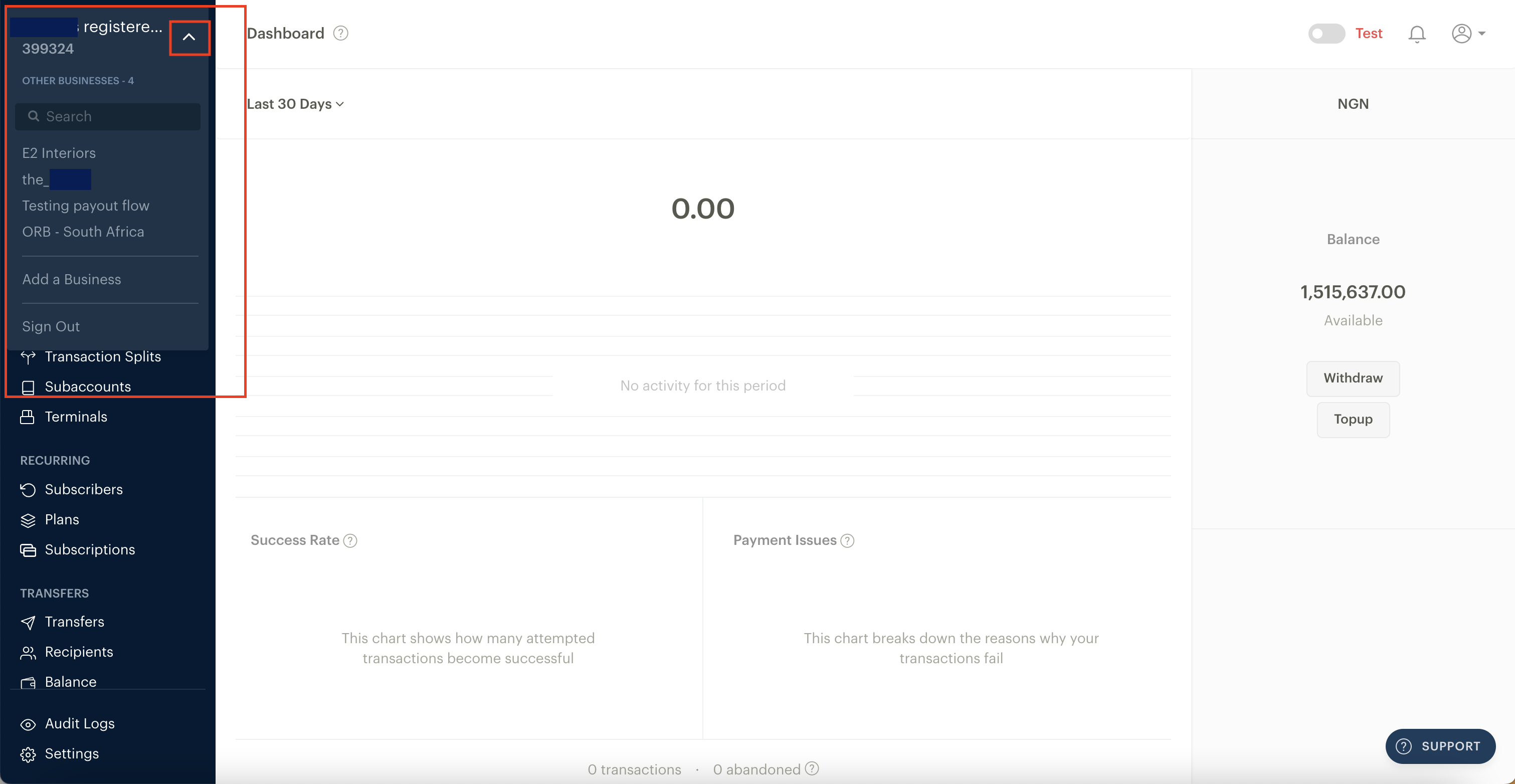
How to switch between businesses
Click the arrow beside the business name at the top-left of the Dashboard.
Select the business you want to manage.
Confirm the selected business name and Business ID before changing settings, using API keys, or reviewing transactions.
The business switcher may also show businesses where you are a team member, even if you are not the Business Owner.
What remains separate for each business
When you add or duplicate a business, Paystack creates a separate business profile. Information and activity are not automatically shared between that business and your other businesses.
Each profile has its own:
Business ID
Transactions and customers
Compliance and activation status
Payout details
Team members and roles
Business settings
API keys and webhook settings
Payment Pages, products, plans, and subscriptions
Available products may vary by country.
⚠️ Always switch to the correct business before copying API keys or making changes.
Should you add another business?
Add another business if:
The legal business or registration details are different.
You want separate records for different brands, branches, countries, websites, or apps.
The businesses need different settings, team access, or payout information.
You want to reconcile each operation independently.
Continue using your existing business if:
It is the same legal business and you want all payments and records in one place.
The same settings, API keys, and payout account should apply across your websites or apps.
If you use one business across multiple websites, all payments will appear together under that business. If you need to route portions of a payment to different bank accounts, consider whether Paystack’s Split Payments product fits your needs instead of creating another business solely for that purpose.
If the new business does not appear
Try the following:
Refresh the Dashboard and reopen the business switcher.
Confirm that you are logged in with the same email address used to create the business.
Check whether you completed the creation process or left a required field blank.
Sign out and sign in again, or try an incognito or private browser window.
Check your email for a notification or request for more information.
If you still cannot create or find the business, contact Paystack Support and include:
Your login email address
The name and Business ID of an existing business on your account
The intended country, trading name, and business type of the new business
Whether you selected Create a new business or Duplicate an existing business
The name and Business ID of the source business, if you attempted to duplicate it
A screenshot or screen recording of the issue
The exact error message shown
Important notes
Use accurate information and documents for every business you create.
A duplicated business must still be reviewed and activated before it can receive live payments.
Available payment channels and requirements may differ depending on the business’s country and business type.
Do not share your login details with team members. Invite each person to the relevant business and assign them an appropriate role instead.