
How to transfer ownership of your Paystack business
A Paystack user can access one or more businesses. When you transfer ownership, the change applies only to the selected Paystack business—not every business linked to the current owner’s login email address.
A Paystack business can have several Admins, but only one Business Owner at a time. The Business Owner has unrestricted access and is the only person who can transfer ownership or close the business.
Before you begin
Confirm that:
You are signed in as the current Business Owner.
You have selected the correct business on your Dashboard.
The intended new owner is already a team member on that business.
The intended new owner has the Admin role. You can only transfer ownership to an existing Admin.
💡 Important Note
If the person is not yet an Admin, go to Settings → Team, select Invite Team Member, enter their email address, and assign them the Admin role. They must accept the invitation before you can transfer ownership.
If they are already a team member with a different role, change their role to Admin first. See Adding team members to your Dashboard for instructions. To understand the access available to each role, read Team roles on the Dashboard.
Where to find the ownership settings
Open Settings → Team on your Paystack Dashboard. The Dashboard layout may look different depending on the version you use, but the relevant labels are Team, Invite Team Member, and Change Business Owner.
How to transfer ownership
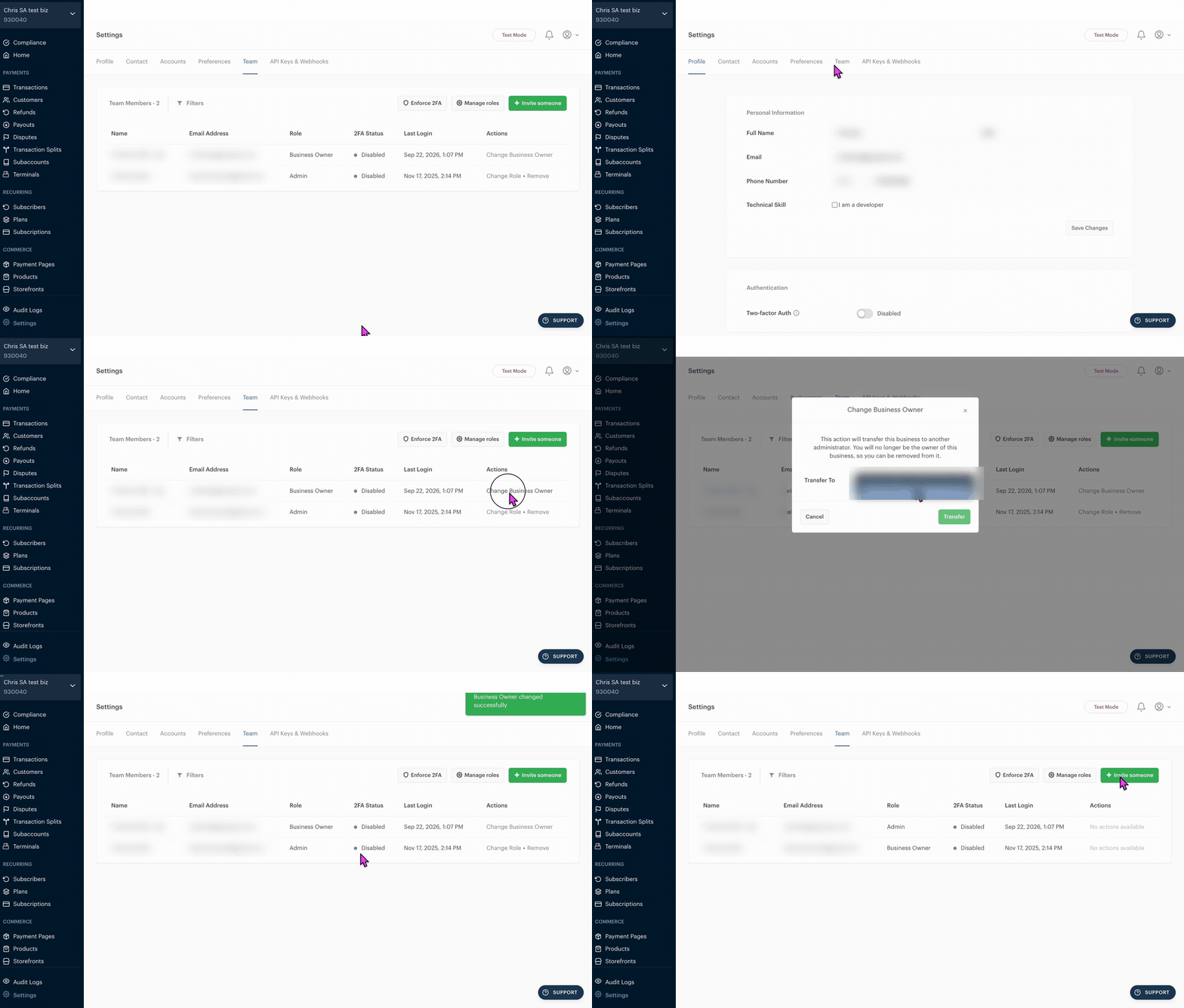
Log in to your Paystack Dashboard.
If you have access to more than one business, use the business switcher at the top-left of the Dashboard to select the correct business.
Go to Settings → Team.
Confirm that the intended new owner appears on the team list as an Admin.
Click Change Business Owner.
Select the Admin who should become the new Business Owner.
Review the details carefully and confirm the change.
Return to the Team page and confirm that the selected person is now listed as the Business Owner.
Once you confirm the transfer, it takes effect immediately. The selected Admin becomes the new Business Owner, while the former Business Owner becomes an Admin. Neither person needs to take any further action.
The new Business Owner becomes the only person who can transfer ownership or close the business. After completing the transfer, review the remaining team members and remove anyone who should no longer have access.
If you cannot see “Change Business Owner”
Check the following:
Are you the current Business Owner? Admins can manage most business settings, but only the Business Owner can transfer ownership.
Are you signed in with the correct email address? You may have access to different Paystack businesses—or the same business—under different email addresses and roles. If you signed in with an email address listed as an Admin, the ownership-transfer option will not appear. Sign out and use the email address listed as the Business Owner for that business.
Is there another Admin? The option will not appear until another user has been added as an Admin.
Has the new Admin accepted the invitation? Confirm that the person appears as an active user on the Team page.
Are you viewing the correct business? Use the business switcher at the top-left of the Dashboard to confirm.
Is the page still loading or showing an error? Refresh the page, sign out and sign in again, or try an incognito or private browser window.
If the issue continues, contact Paystack Support and include:
Your business name and Business ID
The current Business Owner’s email address
The intended new owner’s email address
Confirmation that the intended owner is already an Admin
A screenshot or screen recording of the issue
The exact error message, if one appears
If the current Business Owner is unavailable
If the current Business Owner is a former employee or developer, is unresponsive, or cannot access the account, submit an account-recovery request through the Paystack contact support form.
The Support team will review the request and may ask for additional information privately to confirm your identity, authority, and relationship with the Paystack business. For security reasons, the information required depends on the circumstances, and Support will tell you what to provide after reviewing your request.
The review timeline depends on the circumstances and how quickly you provide the requested information. After completing the verification, the Support team will advise you on the next steps.
Important security tips
Remove former employees and contractors from the Team page promptly.
Give each team member an individual login and only the permissions required for their work.
Review your Audit Logs after the ownership transfer to confirm the changes made to the business.